Install and connect
What this covers
Installing the agent on the Sage PC and connecting it to your GoRoute account with an enrolment code. You never type, copy or see a key.
Before you start
Complete Before you install. Sign in to the Sage PC as the Windows user who uses Sage. The installer needs no administrator rights.
Steps
-
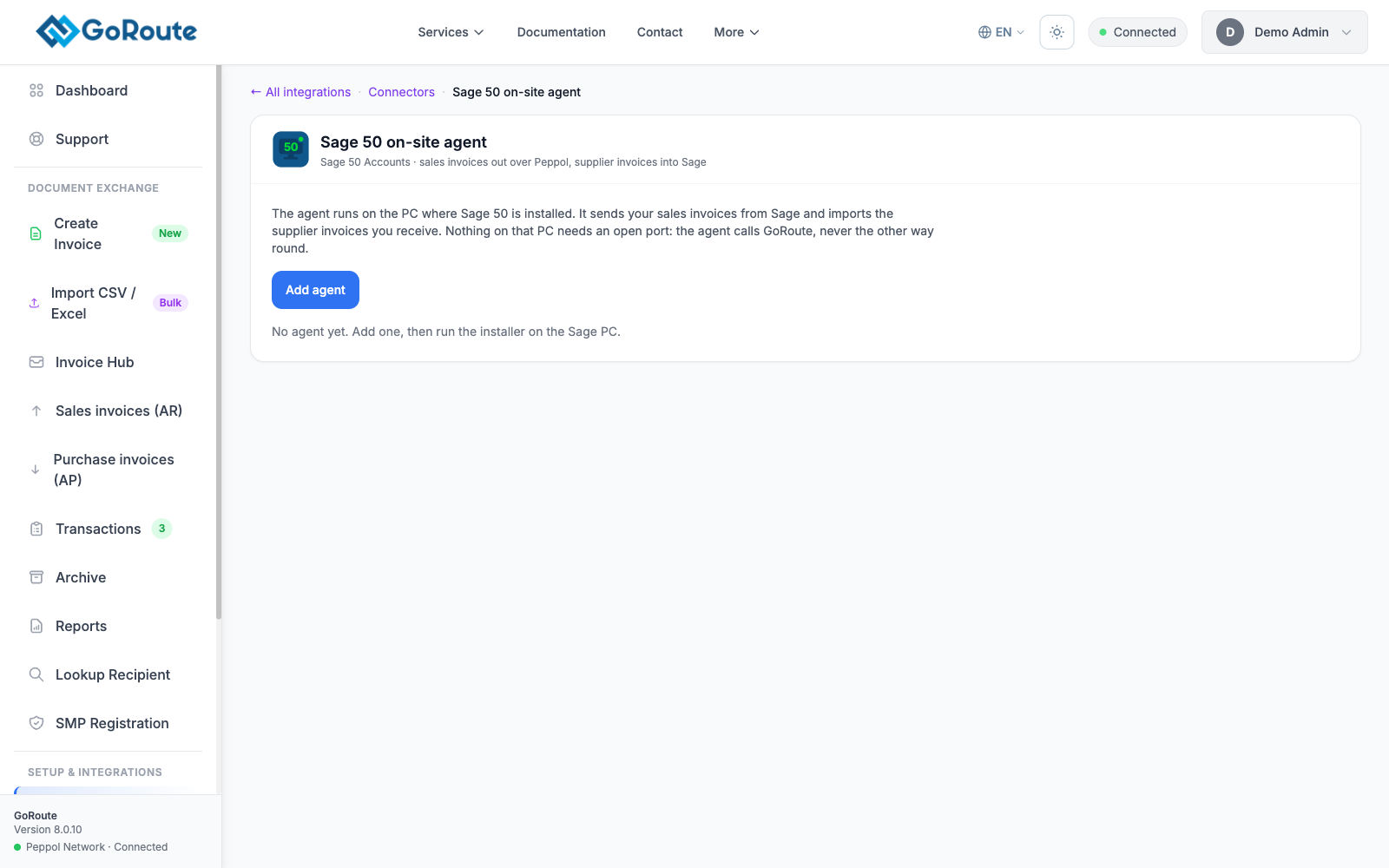
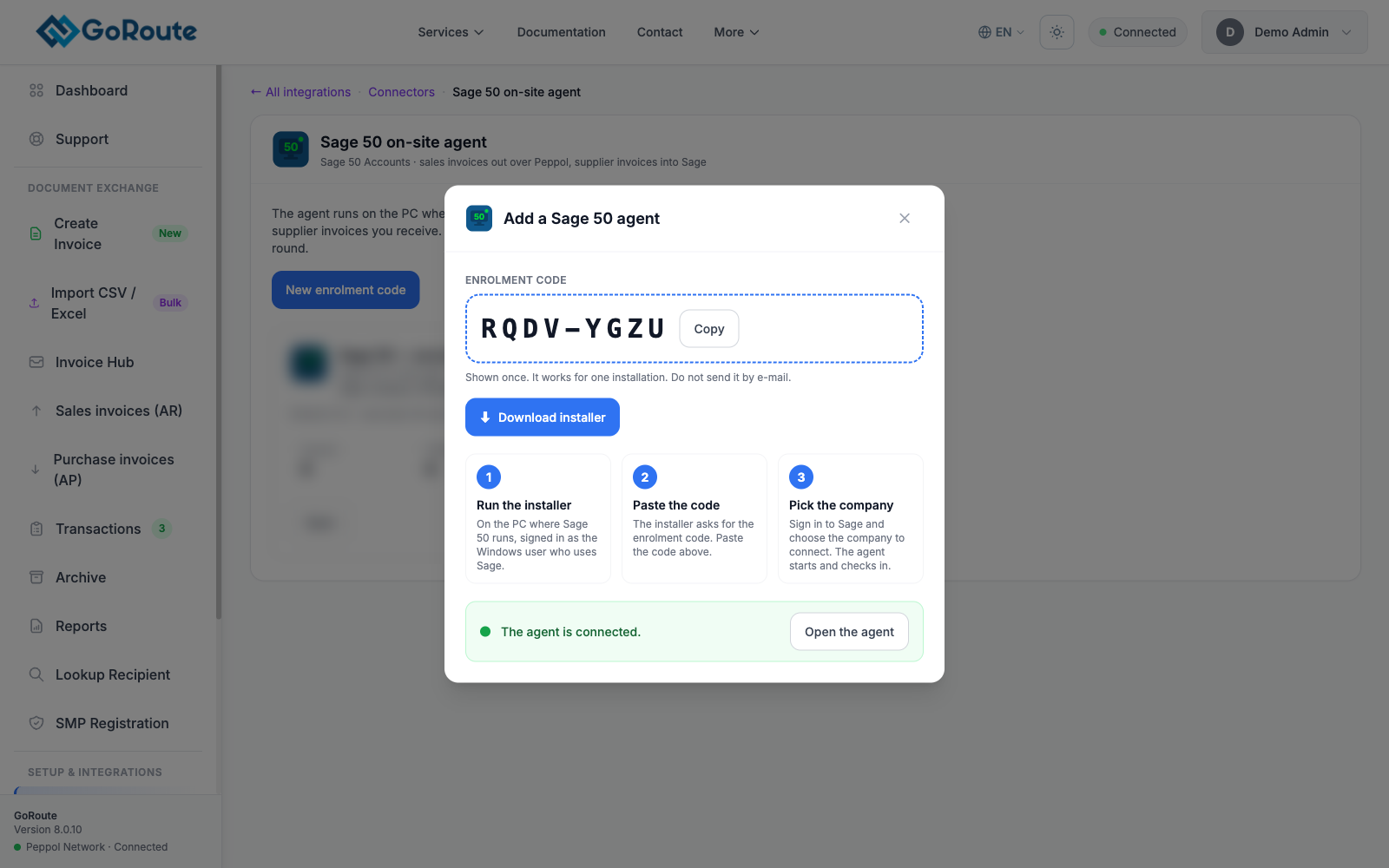
In the GoRoute portal, open Connectors. On the Sage 50 on-site agent tile, click Open, then Add agent.
-
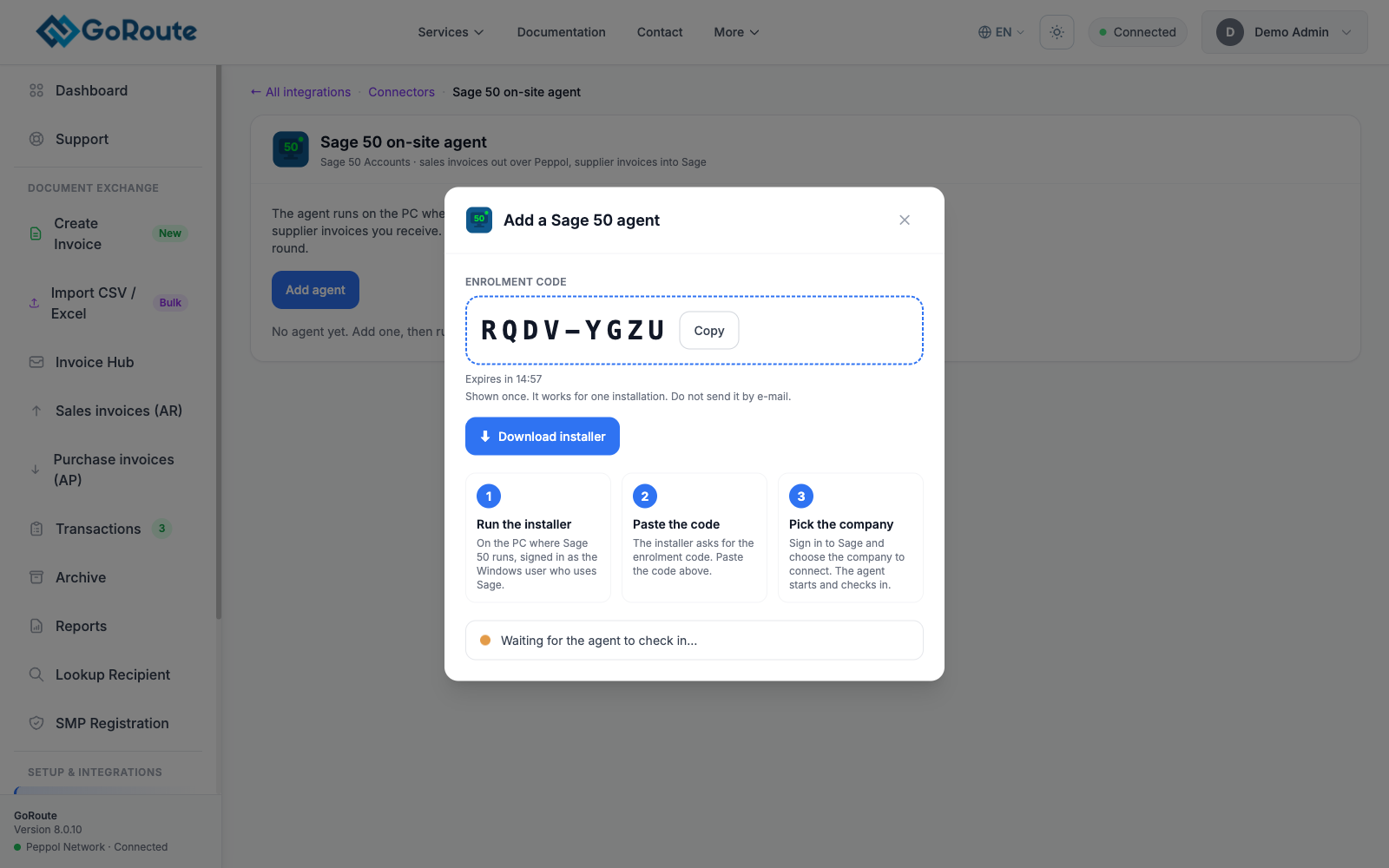
Type a Name for this PC, for example Sage 50 — accounts PC, and click Create enrolment code. The code is shown once and expires after 15 minutes. Click Download installer and copy the code.
-
On the Sage PC, run the installer you downloaded (
GoRouteSage50Agent-Setup….exe). It is signed by ClayDesk LLC. Leave Start the agent automatically when I sign in ticked. -
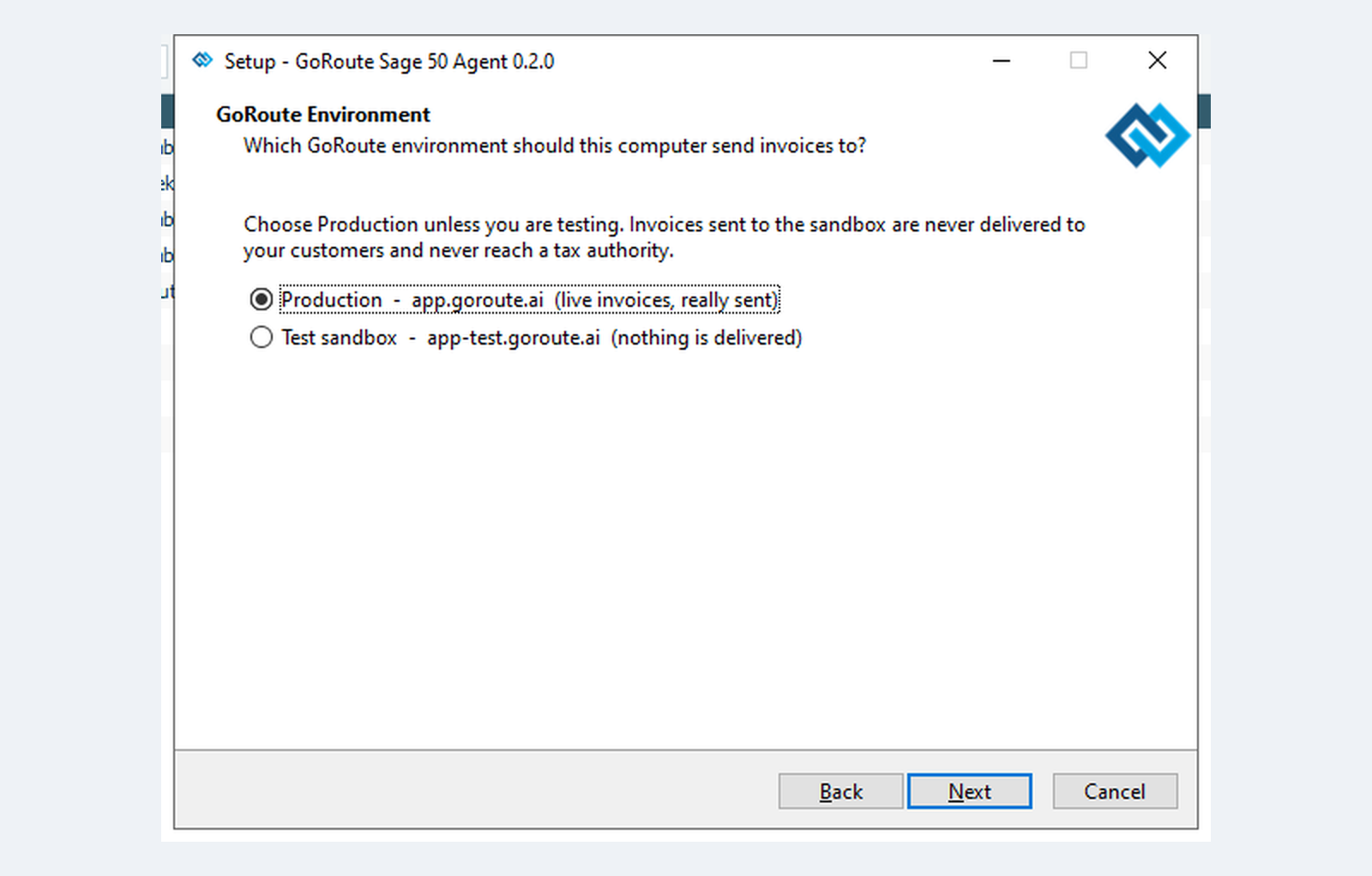
On GoRoute Environment, choose Production for live invoices.
-
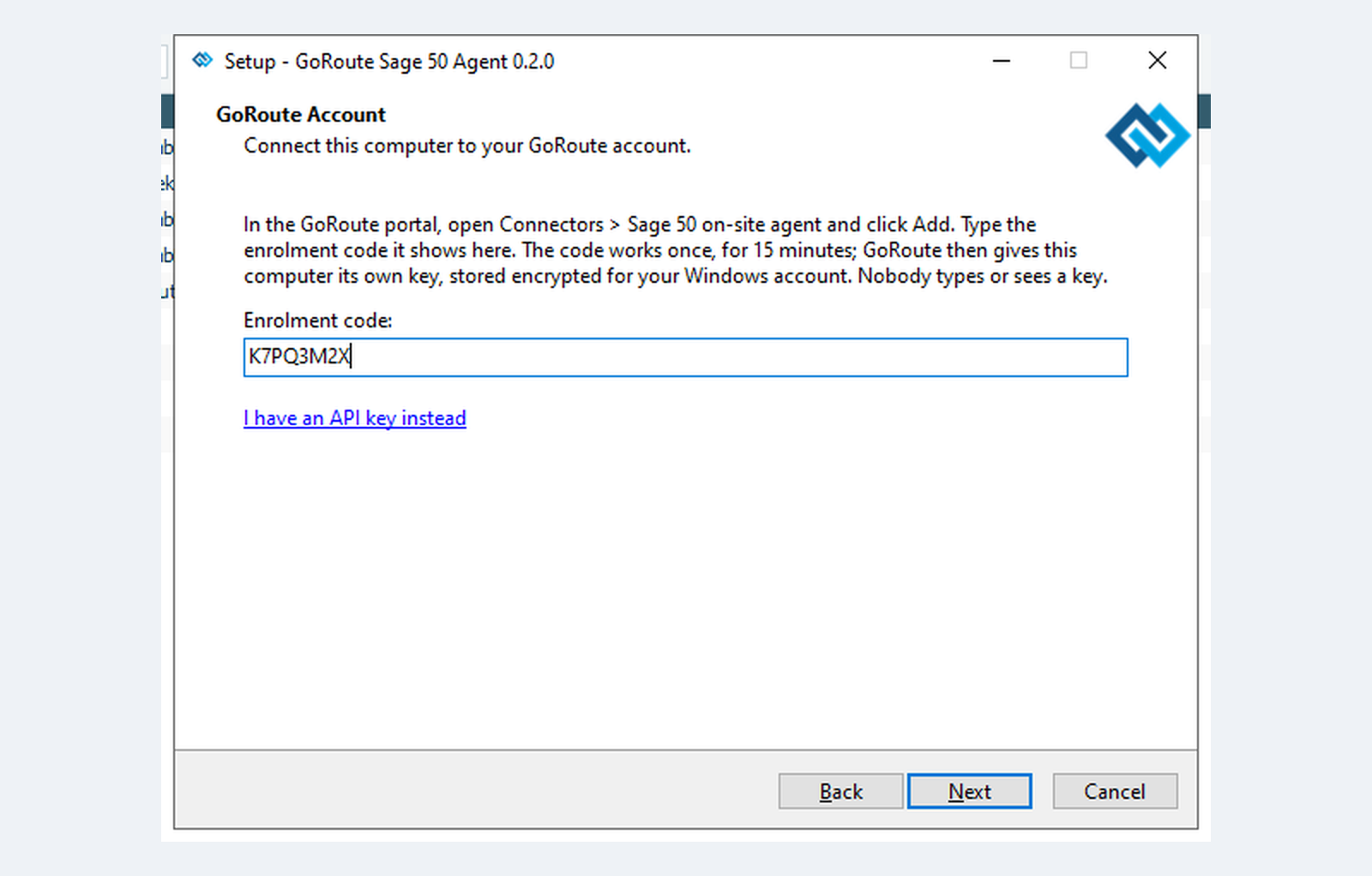
On GoRoute Account, type the code into Enrolment code.
-
On Sage Companies, tick the company to connect. Only ticked companies are ever read. If the company is not listed, which is normal when the data is on a server, the next page asks for its
ACCDATAfolder. Sage shows it at Help ▸ About ▸ Program Details as the Data Directory.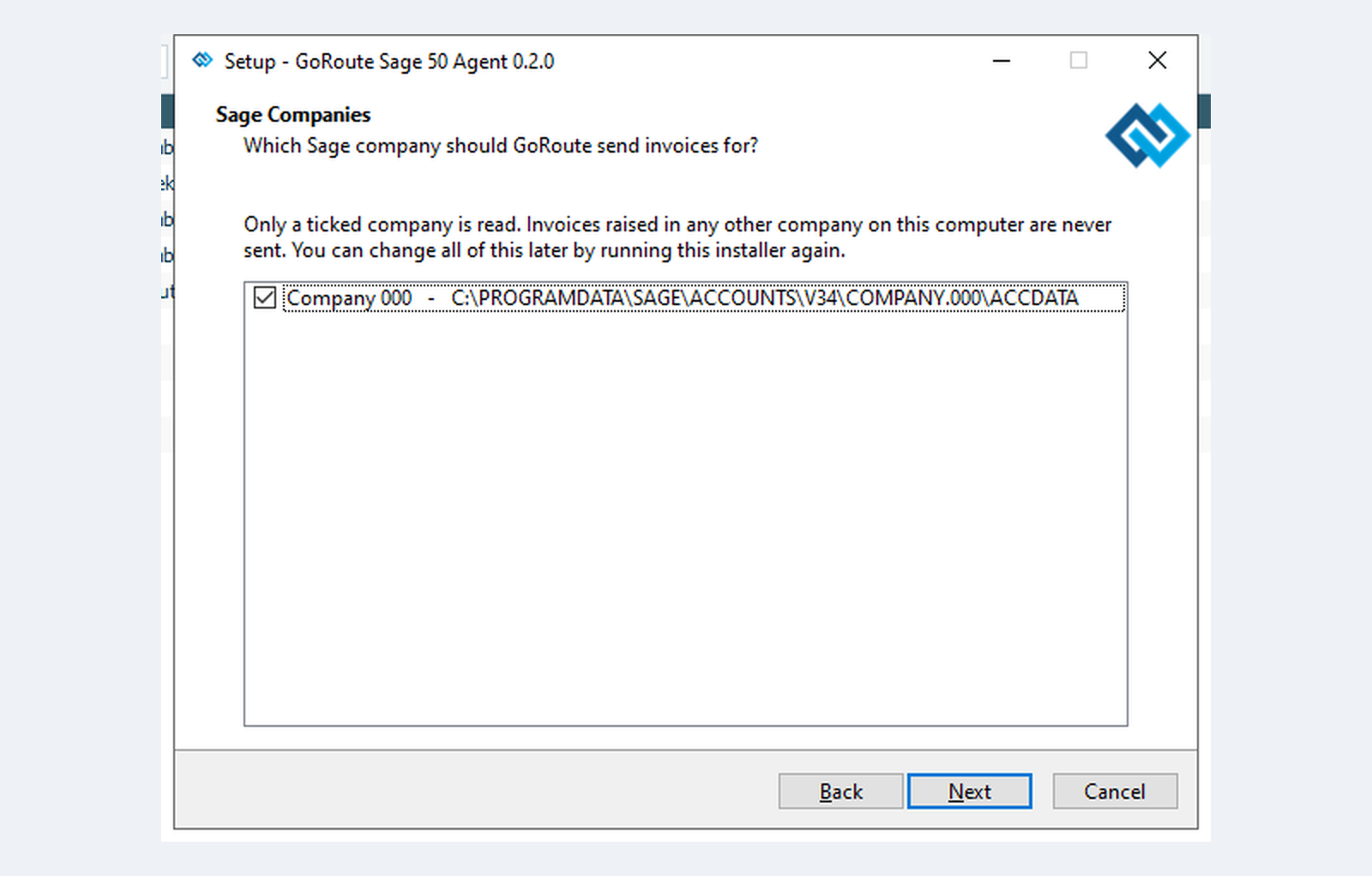
-
On Sage Sign-in, keep Sage user name as
GOROUTEand type its password, or leave Sage password empty if it has none.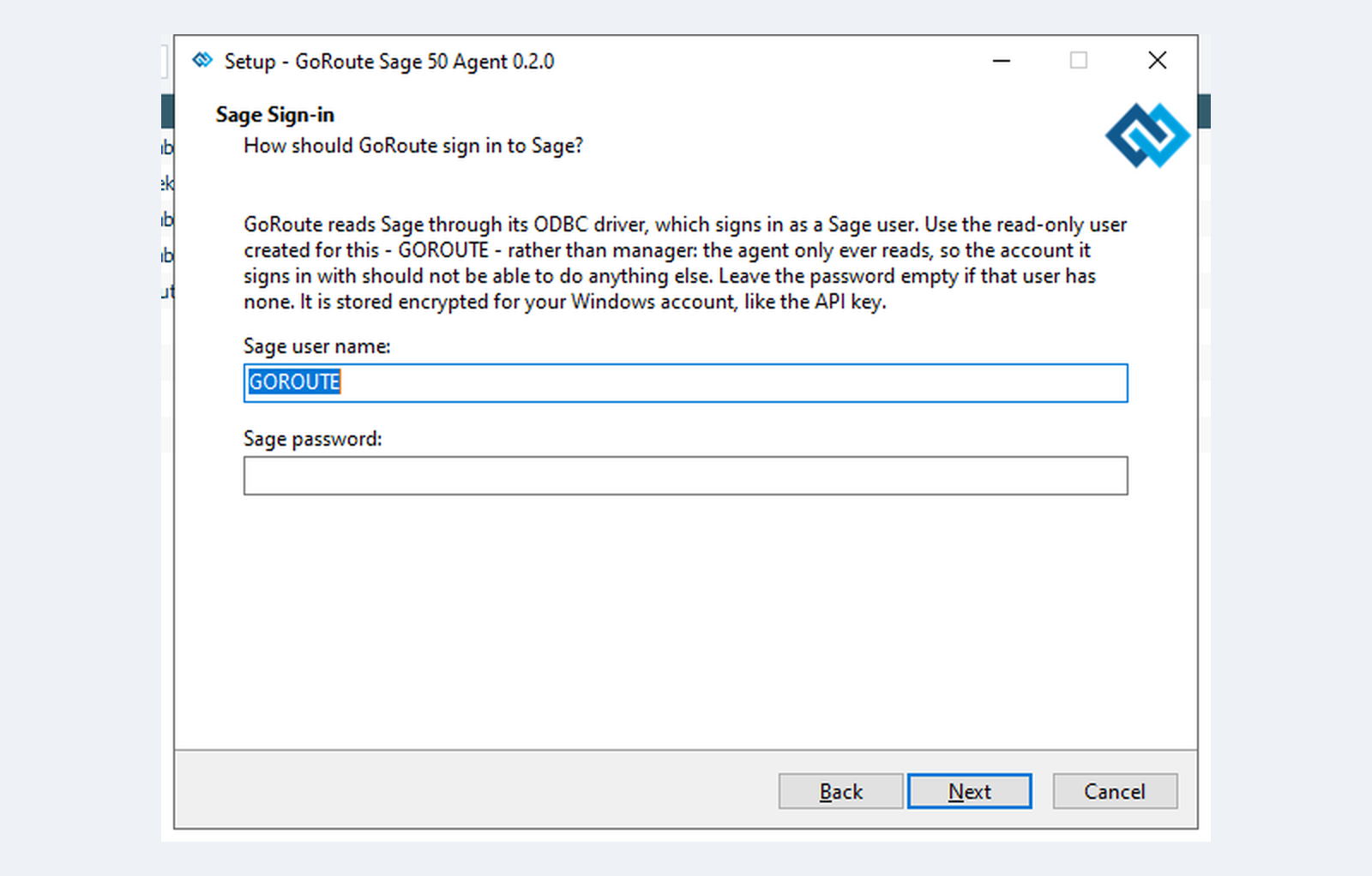
-
On Delivery Date, choose Use the invoice date (recommended) unless your invoices are routinely raised on a different day from despatch.
-
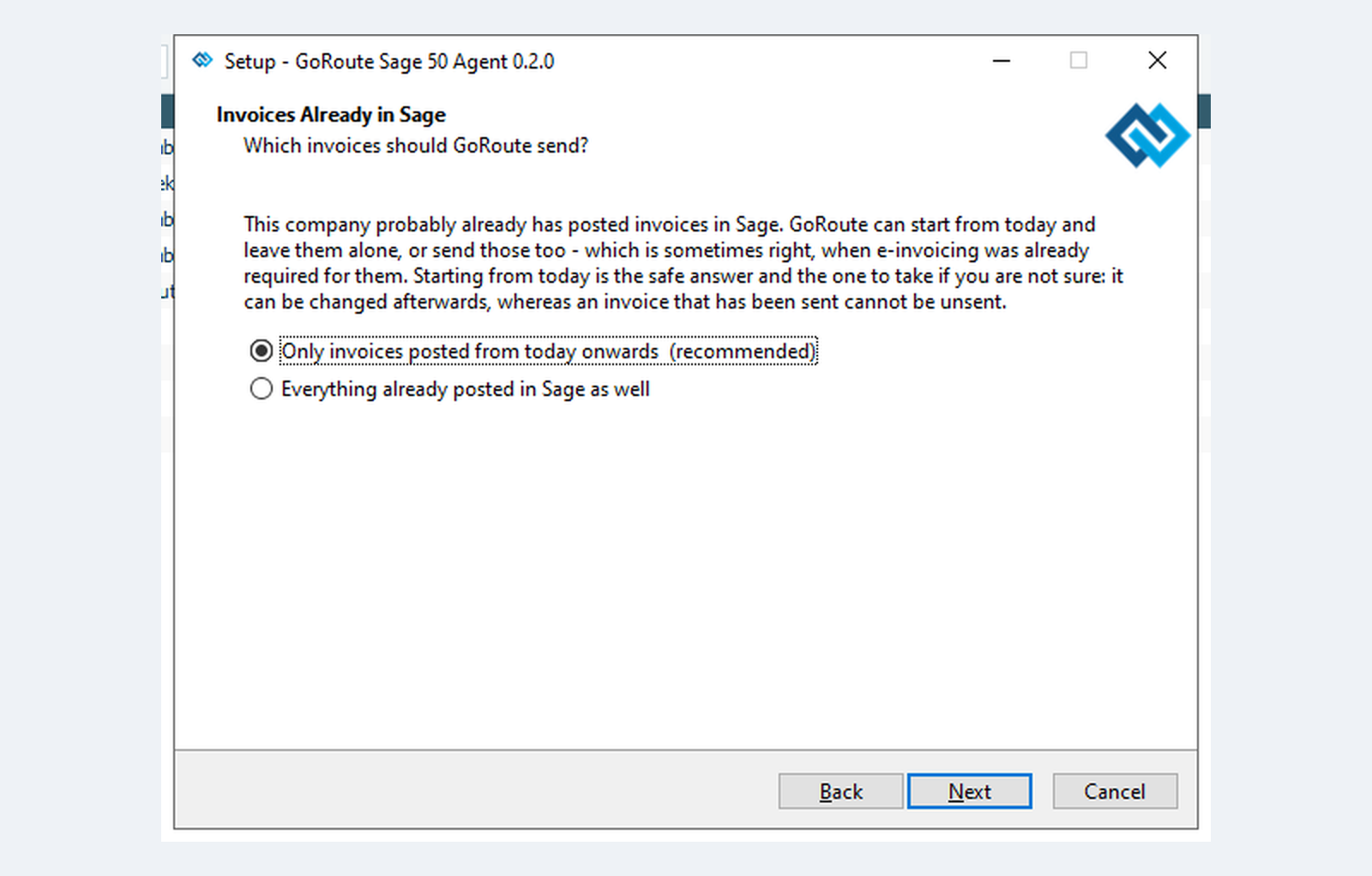
On Invoices Already in Sage, choose Only invoices posted from today onwards (recommended). An invoice that has been sent cannot be unsent.
-
On Folder for the Import Files, keep the default,
C:\Users\Public\Documents\GoRoute Sage 50\Supplier invoices, and click Next. Setup installs the agent straight away. Click Finish.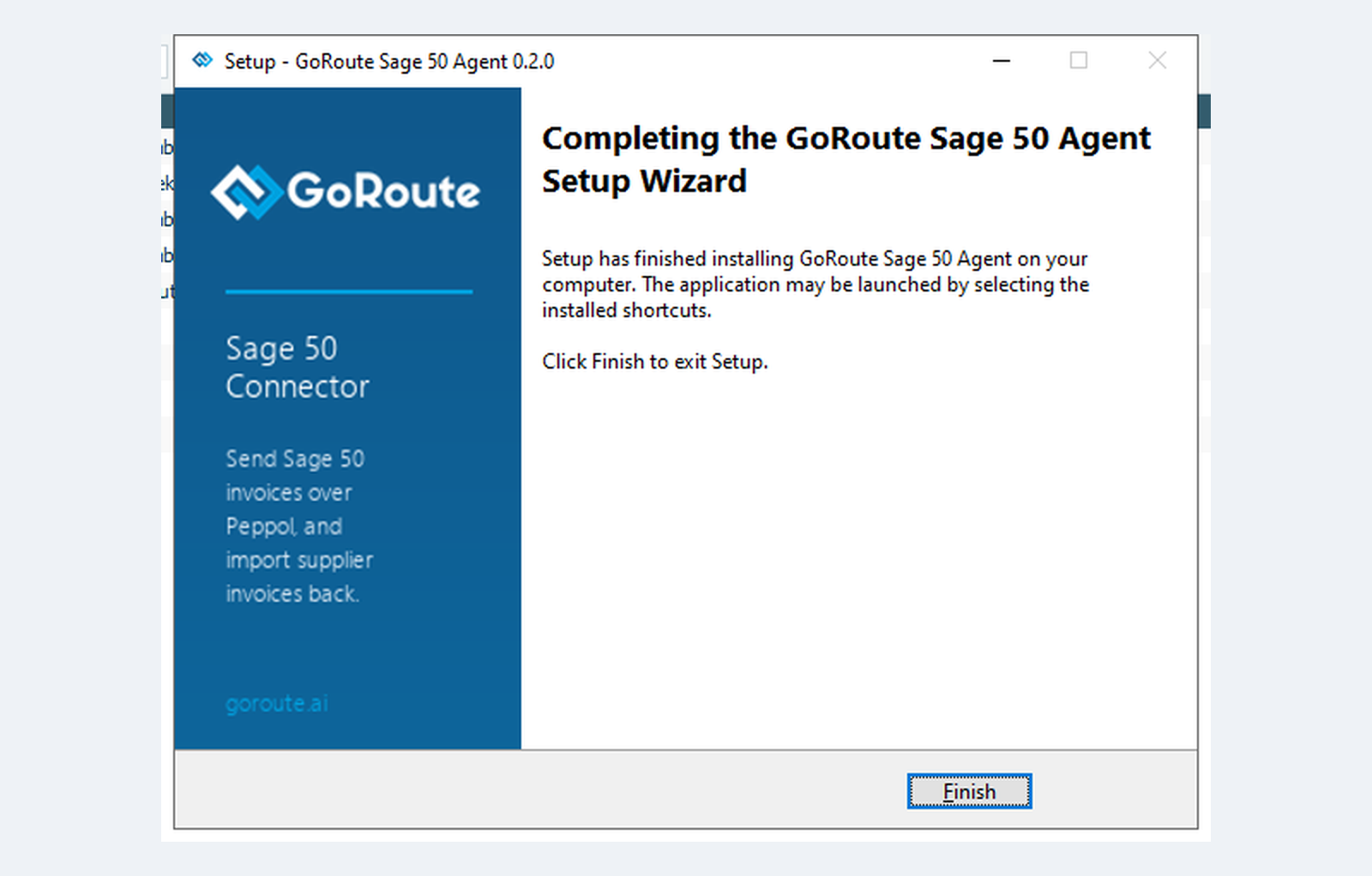
-
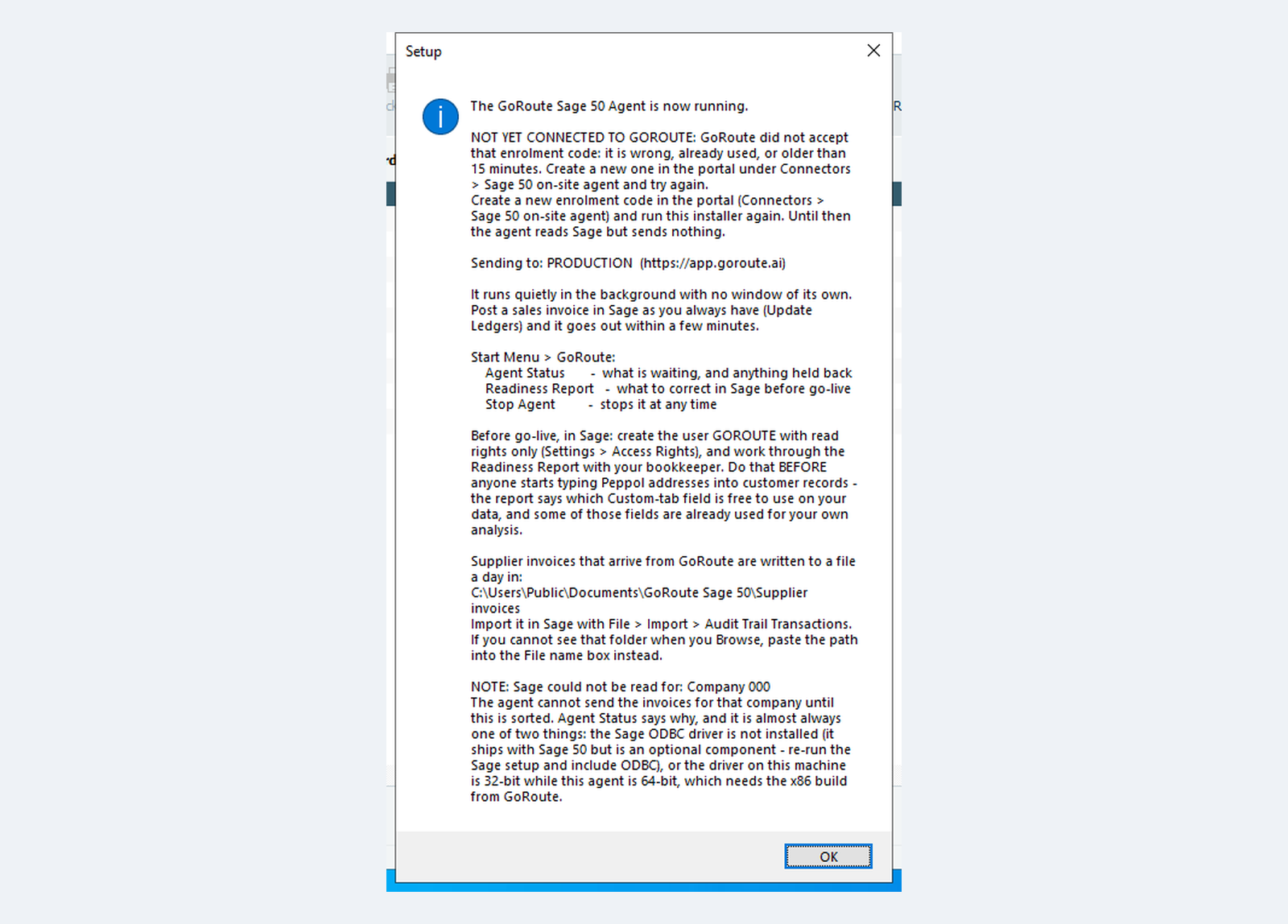
A message then says The GoRoute Sage 50 Agent is now running and This agent is now a GoRoute connector for your organisation, and names the environment it sends to. Click OK. The readiness report opens in your browser.
-
Open Start ▸ GoRoute ▸ Agent Status, go to the Tax codes tab, check each proposed row with your bookkeeper and click Confirm the proposed table. Until you do, every invoice is held. See Tax codes and identifiers.
What you should see
- In the portal, the enrolment dialog says The agent is connected. The agent's card shows Online and its version. Open the agent takes you to its page.
- On the Sage PC, the agent's tray icon is green and Home says All is well once the tax codes are confirmed.
Before you finish, send one invoice to a customer on Peppol and one to a customer who is not, and agree who looks at the agent window each day.
If it does not work
| You see | What to do |
|---|---|
| NOT YET CONNECTED TO GOROUTE on the closing message | The code was mistyped, used, or older than 15 minutes. Create a new code in the portal and run the installer again. It asks only for the code. |
| NOTE: Sage could not be read for: a company, after a blank password | The GOROUTE user has a password. Open Agent Status ▸ Settings ▸ Change Sage sign-in… and enter it. |
| Sage refused the sign-in for the user GOROUTE | The name or password is wrong. Open Agent Status ▸ Settings ▸ Change Sage sign-in… and click Test and save. |
| NOTE: Sage could not be read for: a company, with the right password | The Sage ODBC driver is missing, or it is 32-bit. Re-run the Sage setup with ODBC, or ask GoRoute for the 32-bit agent. |
| The company list is empty | The installer names the folders it searched. Enter the ACCDATA path on the next page. |
More in Troubleshooting.
Written for agent 0.2.x and the GoRoute portal release of 31 October 2026.