Receiving supplier invoices
What this covers
Supplier e-invoices that reach your GoRoute account arrive on the Sage PC as one import file a day, with each supplier's PDF beside it. You import the file once, and the agent reports each invoice back to GoRoute as posted.
Before you start
- Every supplier who sends you e-invoices exists in Sage under Suppliers, with their VAT number on the Details tab.
- You can use Sage in single-user mode, with nobody else working in the company.
- You have taken a backup, as before any Sage import.
Steps
-
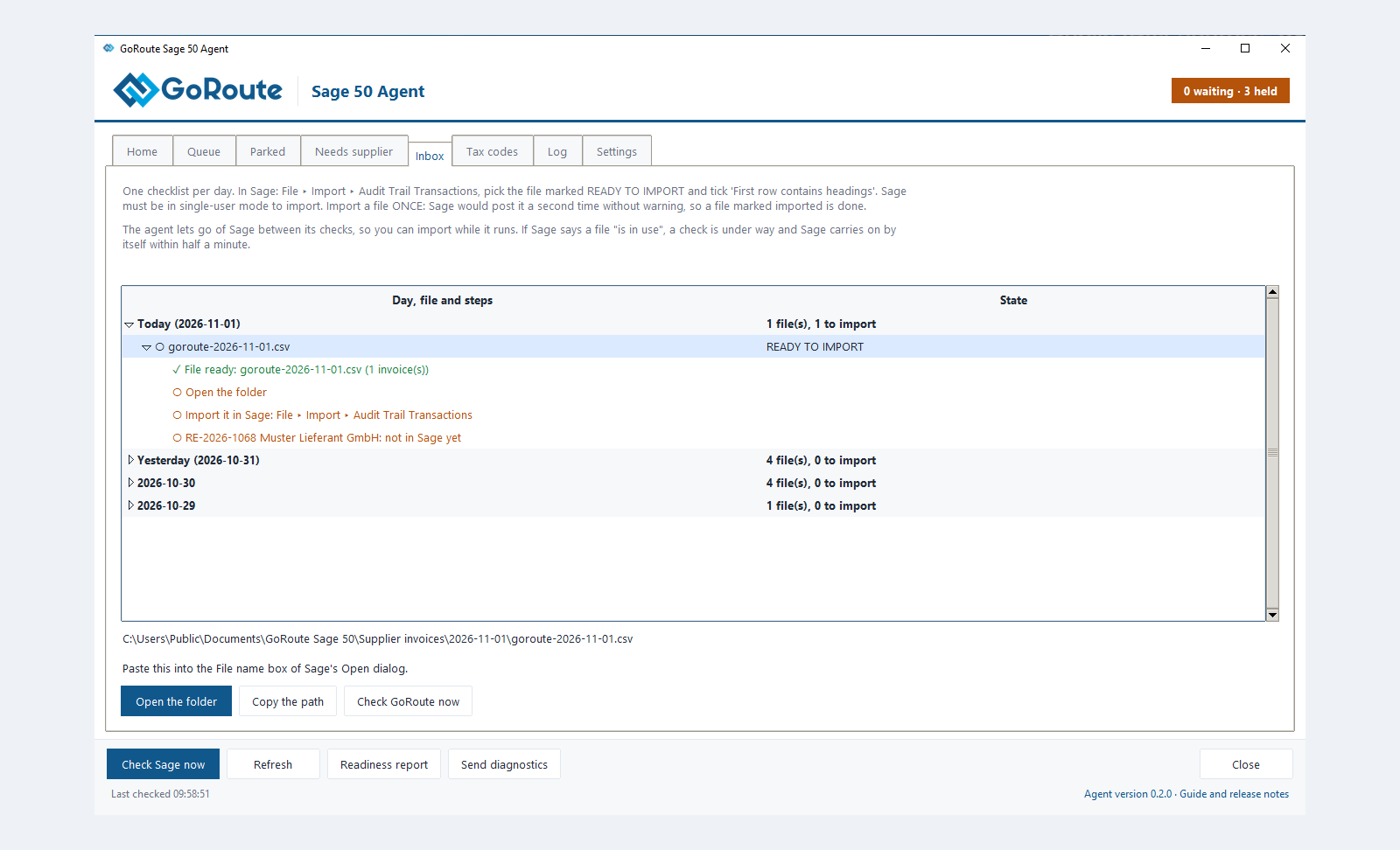
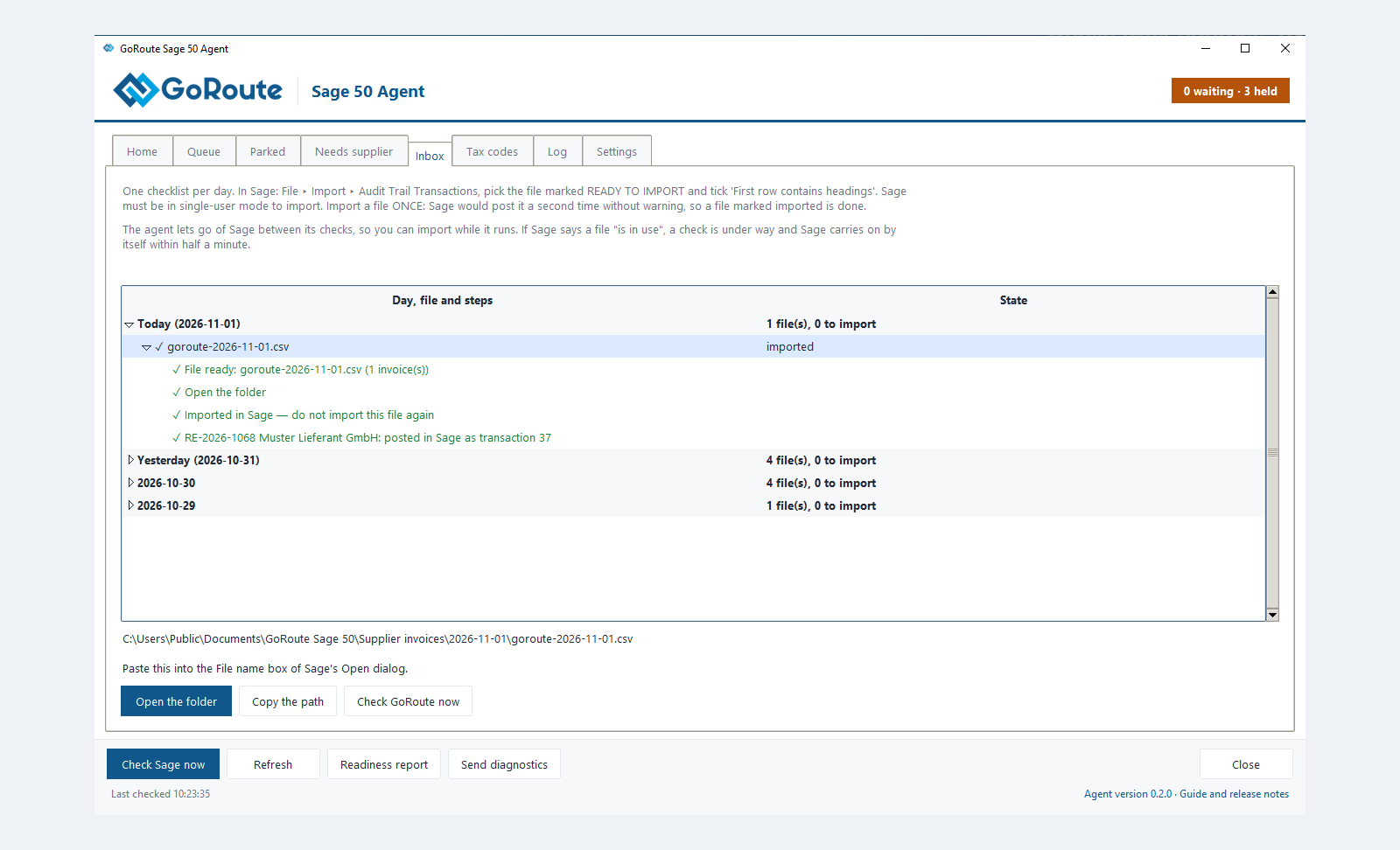
Open Agent Status ▸ Inbox. Each day lists its file. A file marked READY TO IMPORT is waiting for you.
-
Select the file and click Copy the path.
-
In Sage, open File ▸ Import…. If Sage warns that this closes all other open windows, click Yes. On the Welcome page, click Backup… if you have not taken one yet, then Next.
-
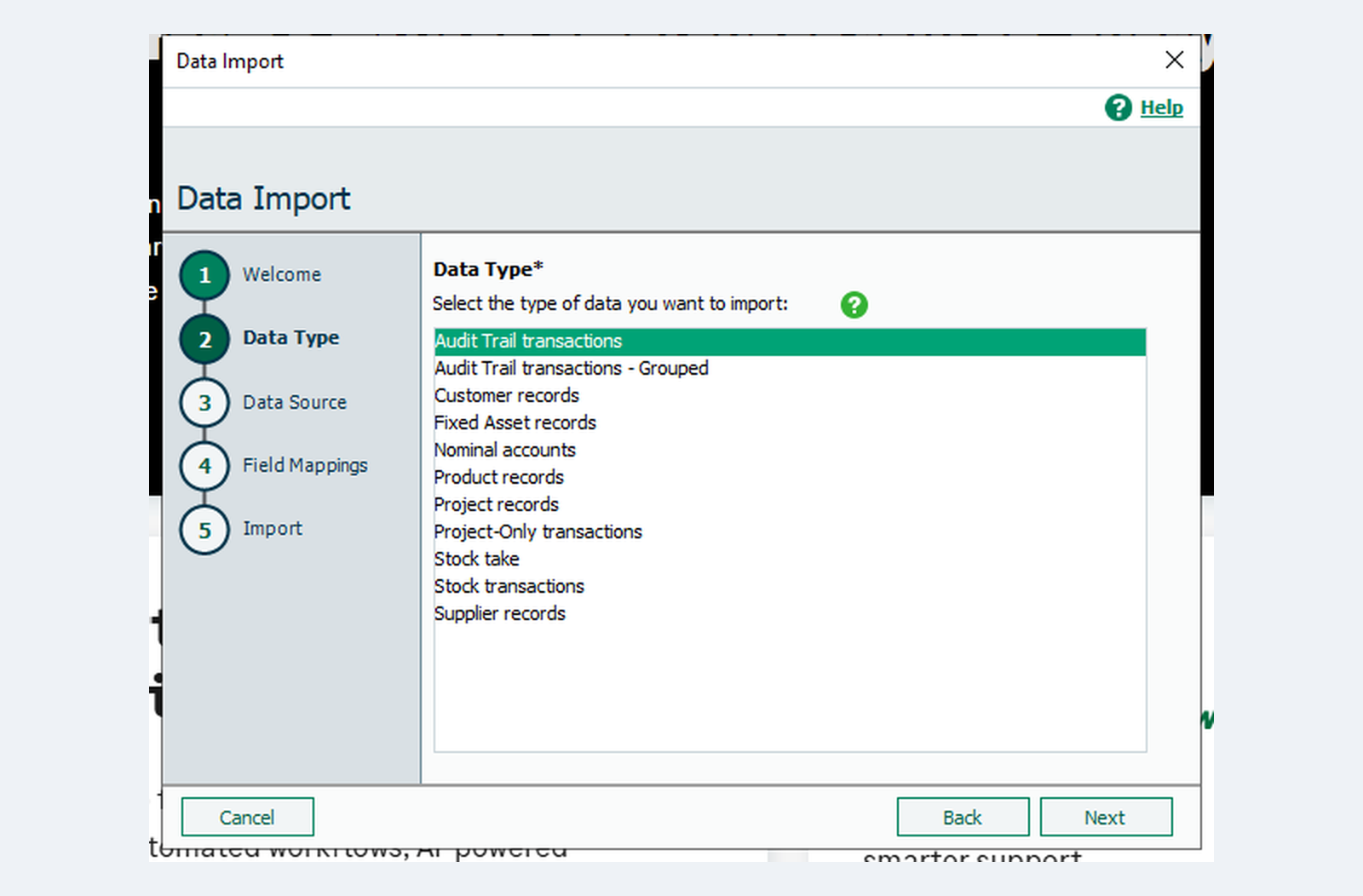
Under Data Type, choose Audit Trail transactions and click Next.
-
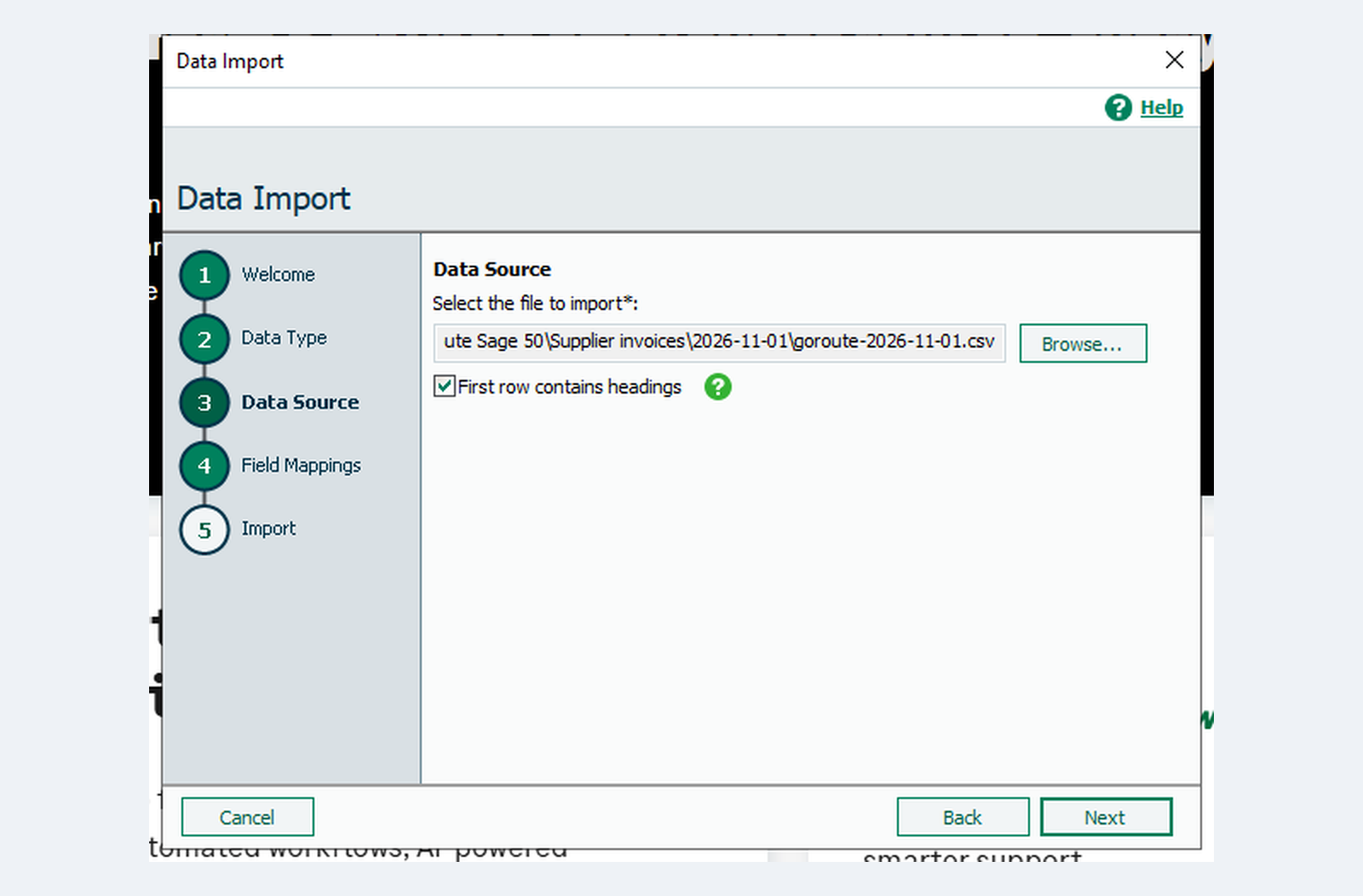
On Data Source, click Browse, paste the path into the File name box and click Open.
-
Now tick First row contains headings. Tick it after choosing the file: choosing a file clears the tick box. Click Next.
-
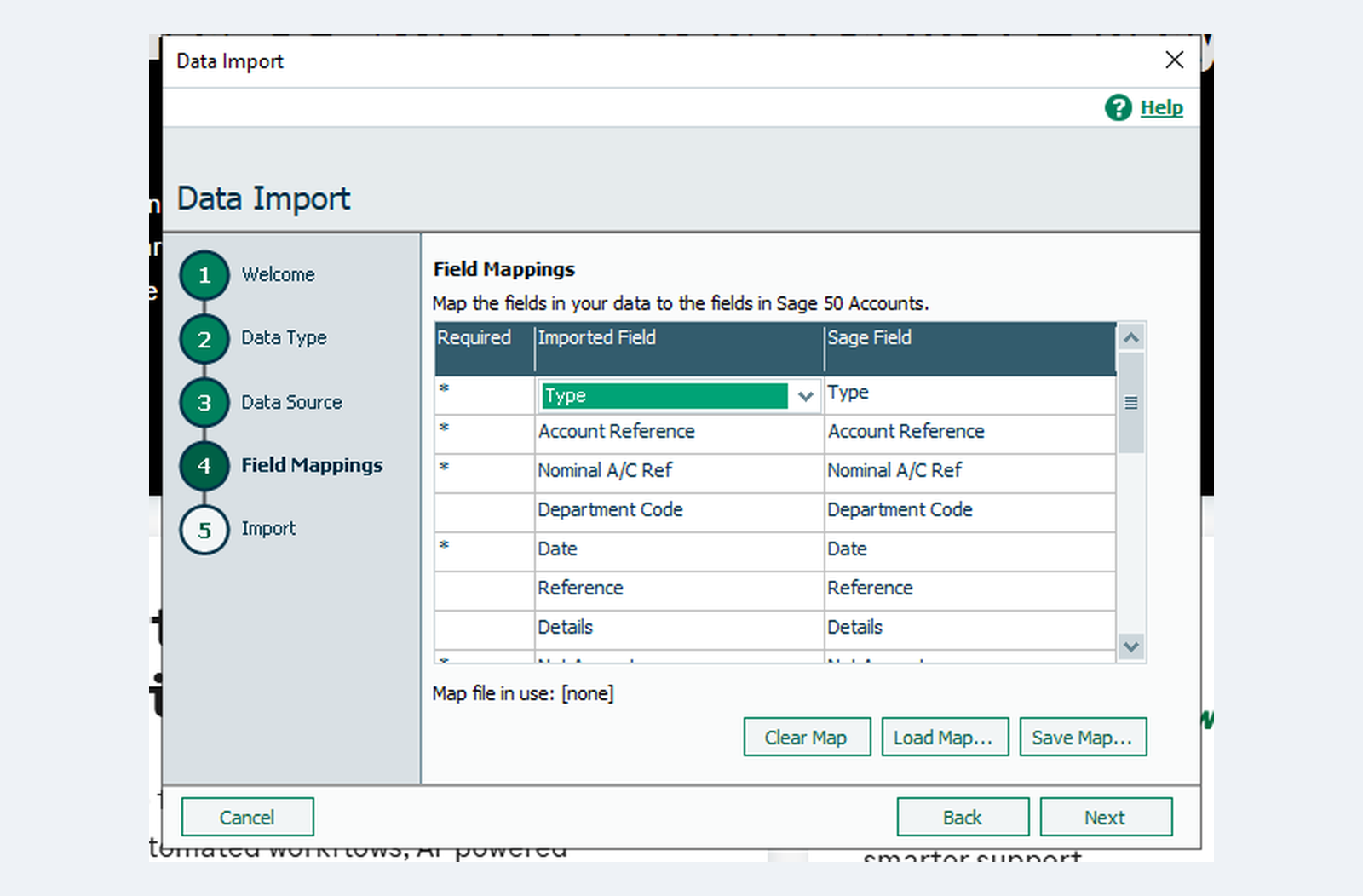
On Field Mappings, every field is already mapped. Click Next.
-
Check the summary and click Import. Import Results lists the rows under Records Imported, and anything Sage did not take under Records not Imported. Click Close.
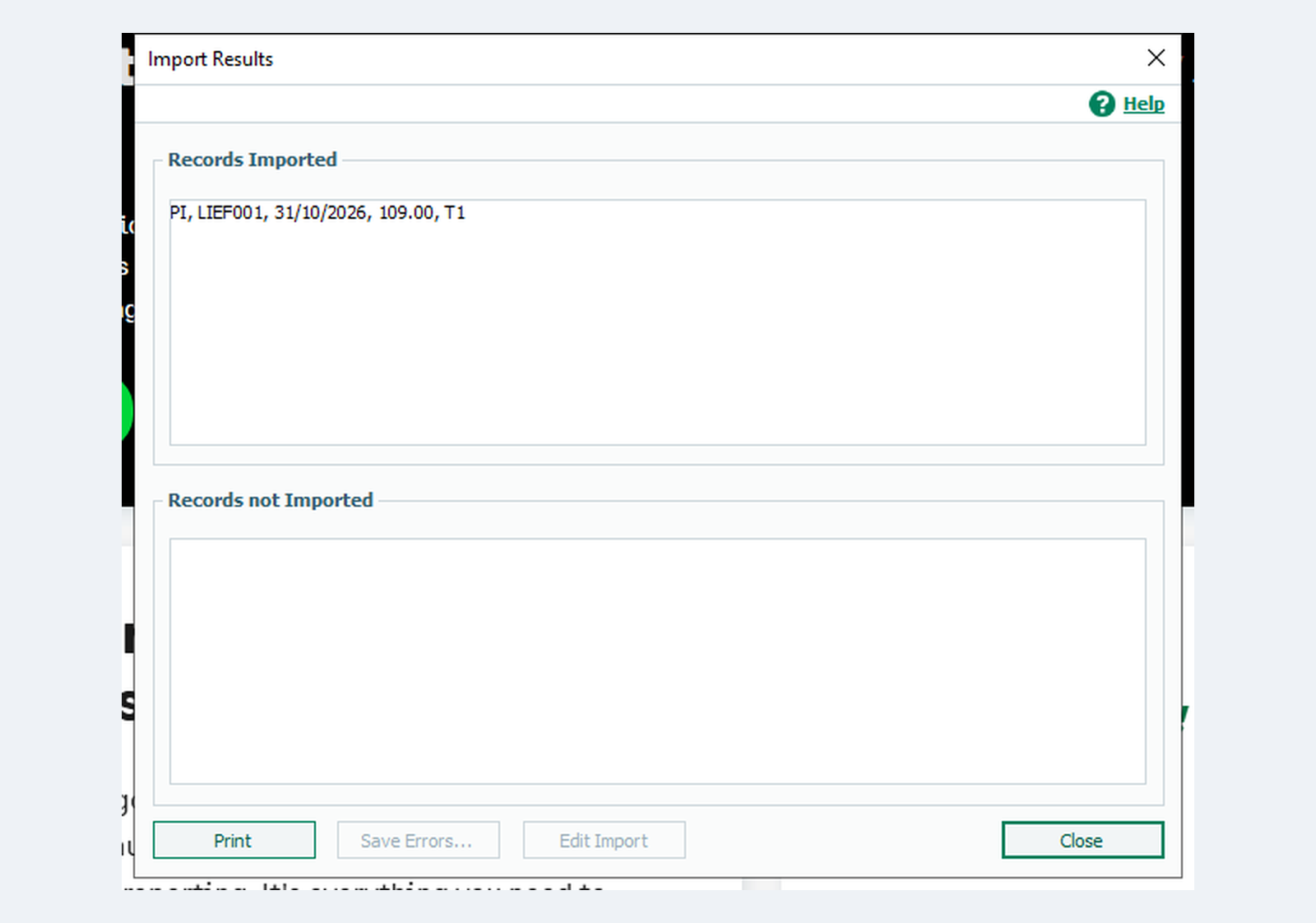
Each invoice is written as purchase invoice (PI) or purchase credit (PC) rows, one row per VAT
rate. Sage also offers Audit Trail transactions - Grouped, which posts an invoice with two VAT
rates as one transaction with two lines. Either works. Choose one and keep to it.
Sage imports the same file a second time without any warning, and posts every invoice in it
again. A file marked Imported in Sage — do not import this file again is done. Invoices that
arrive after you import go into a new file for the same day, goroute-<date>-2.csv, marked
READY TO IMPORT.
When a supplier is missing
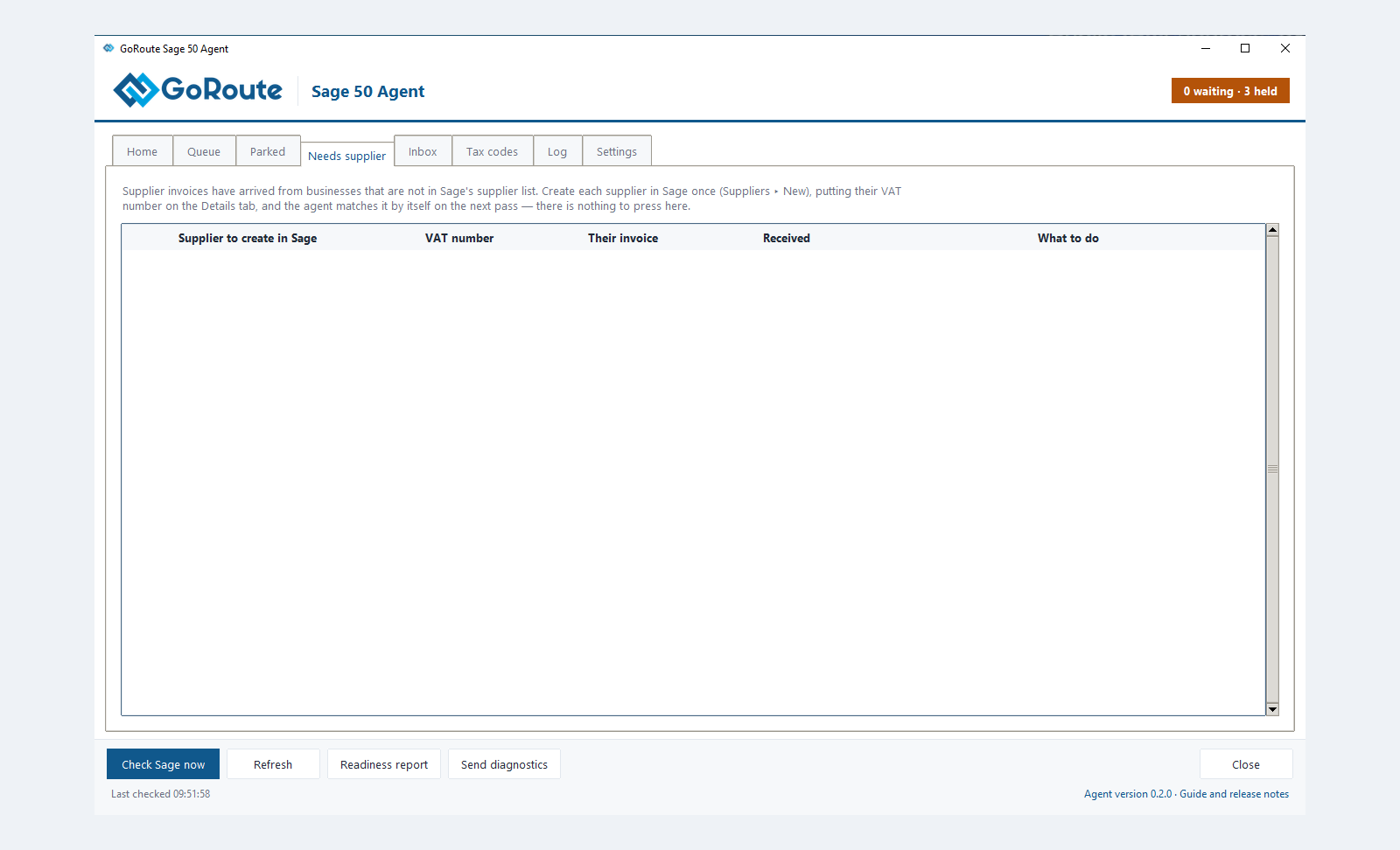
An invoice from a supplier Sage does not know waits on the Needs supplier tab, with the VAT number to use.
- In Sage, open Suppliers ▸ New.
- Create the supplier, with their VAT number on the Details tab.
- Wait for the next check, or click Check GoRoute now on the Inbox tab. The agent matches the supplier and adds the invoice to the day's file.
Invoices in another currency
The invoice is written in its own currency, at the rate Sage holds in Settings ▸ Currencies on the day the file is written. The supplier's Sage record must be in that currency. If either is missing, the invoice waits in the agent window with a sentence saying which.
What you should see
-
At the agent's next check of Sage, the file reads imported and each invoice posted in Sage as transaction and its number.
-
In the portal, the agent page counts it under Posted in Sage today. GoRoute records the invoice as posted, with its Sage transaction number.
-
The supplier PDFs stay in the day's folder, for your own filing.
If it does not work
| You see | What to do |
|---|---|
| Browse does not show the folder | Paste the path into File name, as in step 5. |
| Field Mappings is blank | Click Back, untick and tick First row contains headings again. |
| DEPARTM.DTA is in use or another .DTA | An agent check is under way. Wait half a minute. Sage carries on by itself. |
| You imported a file twice | Delete the duplicate transactions in Sage. The agent flags the duplicate in the portal with the transaction numbers. |
Written for agent 0.2.x and the GoRoute portal release of 31 October 2026.